The File Picker Guide
Why we need you to select your document and how to resolve the "Third-Party Cookies" error.
The Trigger
The file picker is triggered when you perform actions that require direct access to your document's internal structure or when generating external assets like PDFs.

Prompt 1: Action Required
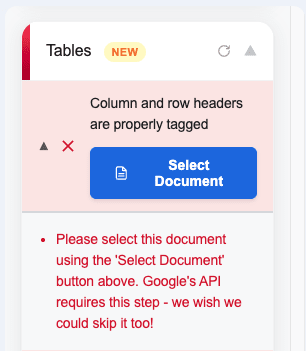
The image on the left is the Export PDF button. The image on the right is the Select Document button in the Tables category. Both of these trigger Google's file picker.
Why is this required?
To protect your privacy, Google uses Restricted Scopes. This means Inkable Docs cannot see or access your files unless you explicitly select them using the official Google Drive picker.
We wish we could skip this step too! However, this "explicit user intent" is a mandatory security requirement from Google to ensure your data stays safe.
How to select your file
- 1Click Select Document (for tables) or Export PDF in the sidebar.
- 2The Google Drive window will pop up. Select the currently active document.
- 3Click Select to grant Inkable temporary permission to process that specific file.
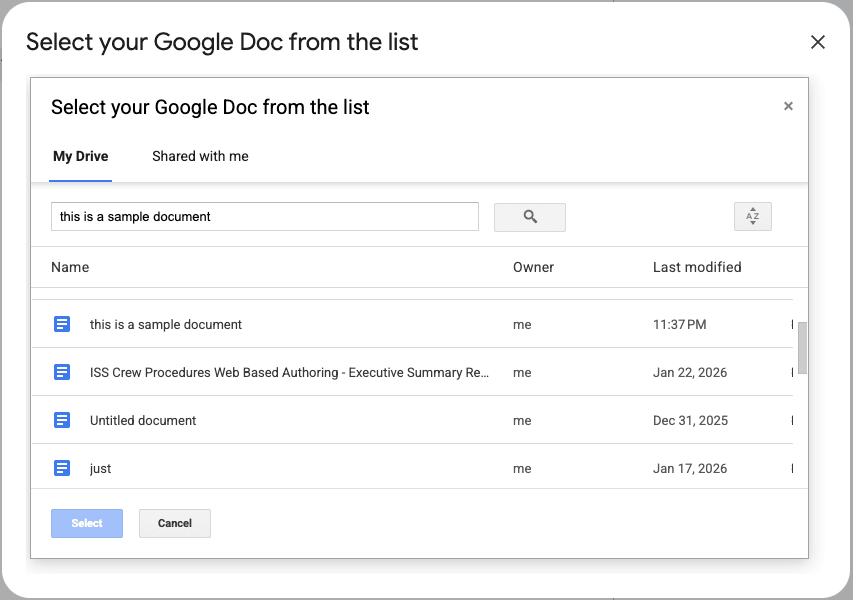
Visual representation of the file selection window showing the "Select" button
Resolving "Third-Party Cookies"
Why am I seeing a cookie error?
The Google Drive picker runs in an iframe. Most modern browsers block "third-party cookies" by default, which prevents Google from verifying your identity inside the picker window.
Google Chrome Fix
- 1
Go to Settings → Privacy and security
- 2
Click Third-party cookies
- 3
Select Allow third-party cookies
Safari Fix
- 1
Go to Settings → Privacy
- 2
Select Allow third-party cookies
Firefox Fix
- 1
Go to Settings → Privacy & Security
- 2
Scroll to Cookies and Site Data
- 3
Select Allow third-party cookies
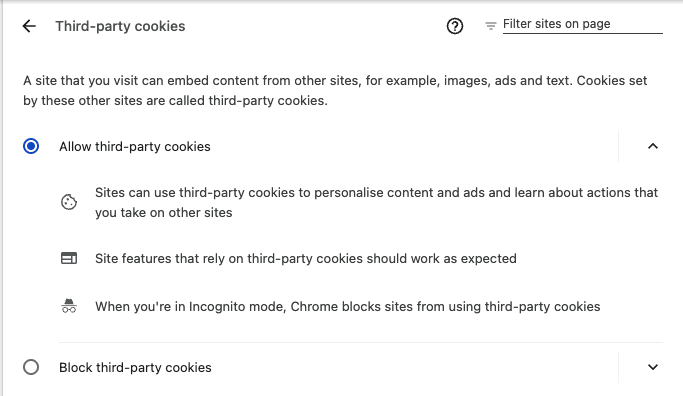
How to allow third-party cookies in Chrome browser settings