What Each Button and Status Means
A functional dictionary of every interactive element in the Inkable sidebar.
Global Actions
These buttons affect the entire document and may trigger long-running operations.
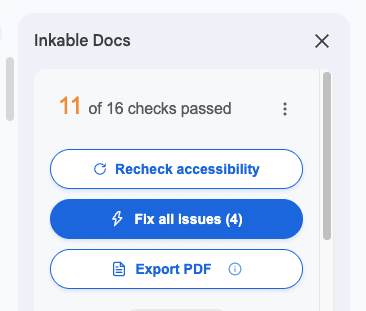
Recheck accessibility
Scans your entire document for accessibility issues. Use this after making changes or to refresh the current status.
Fix all issues
Applies automated fixes to every detected problem in one batch. This may take a minute for large documents. This button only appears when there are automatic fixes available.
Export PDF
Generates a downloadable PDF that includes all accessibility fixes. The PDF will be tagged for screen readers. A file picker will appear to select the document - Google's API requires this step. Learn why this is required.
Targeted Actions
These controls apply to a single detected issue or element.
| Interface Element | What It Does |
|---|---|
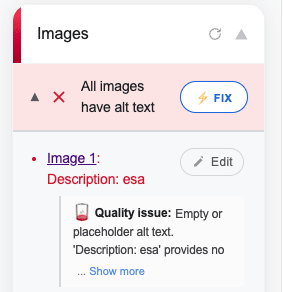
⚡ Fix | Fixes this specific issue automatically. Click when you want to address one problem at a time. |
Edit (Alt Text) | Opens an editor where you can review or change the description text for images. Use this to override AI suggestions. |
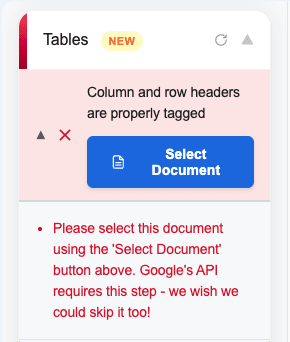
Select Document | A permission prompt that appears for complex tables. Clicking grants temporary access to analyze table structure via the Google file picker. |
Jump Links (Image 1, etc.) | Click to jump directly to the image or element in your document. Helps you locate the exact item being checked. |
Interactive Links
These links let you override automatic checks when an element should be excluded from accessibility requirements.
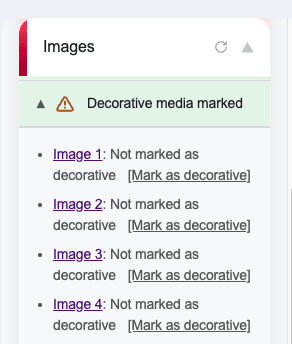
Tells Inkable to ignore this image during accessibility checks. Use for purely decorative images that don't convey information.
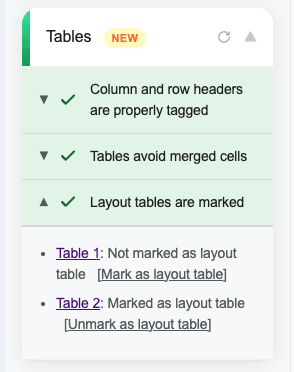
Marks a table as visual-only (not data). Use when a table is used for page layout rather than presenting information.
Reverses a decorative marking. The image will be checked again and may require alt text.