Headings and document structure
Identify heading hierarchy issues so readers can navigate sections instead of relying on visual formatting.
Author review: Confirm that headings describe the content and follow a logical outline.
Inkable Docs for Google Workspace
Inkable Docs is a Google Docs accessibility tool for checking document structure, reviewing AI-assisted fixes, and preparing accessible PDFs. Support WCAG review and PDF/UA export workflows while your team works in Google Docs.
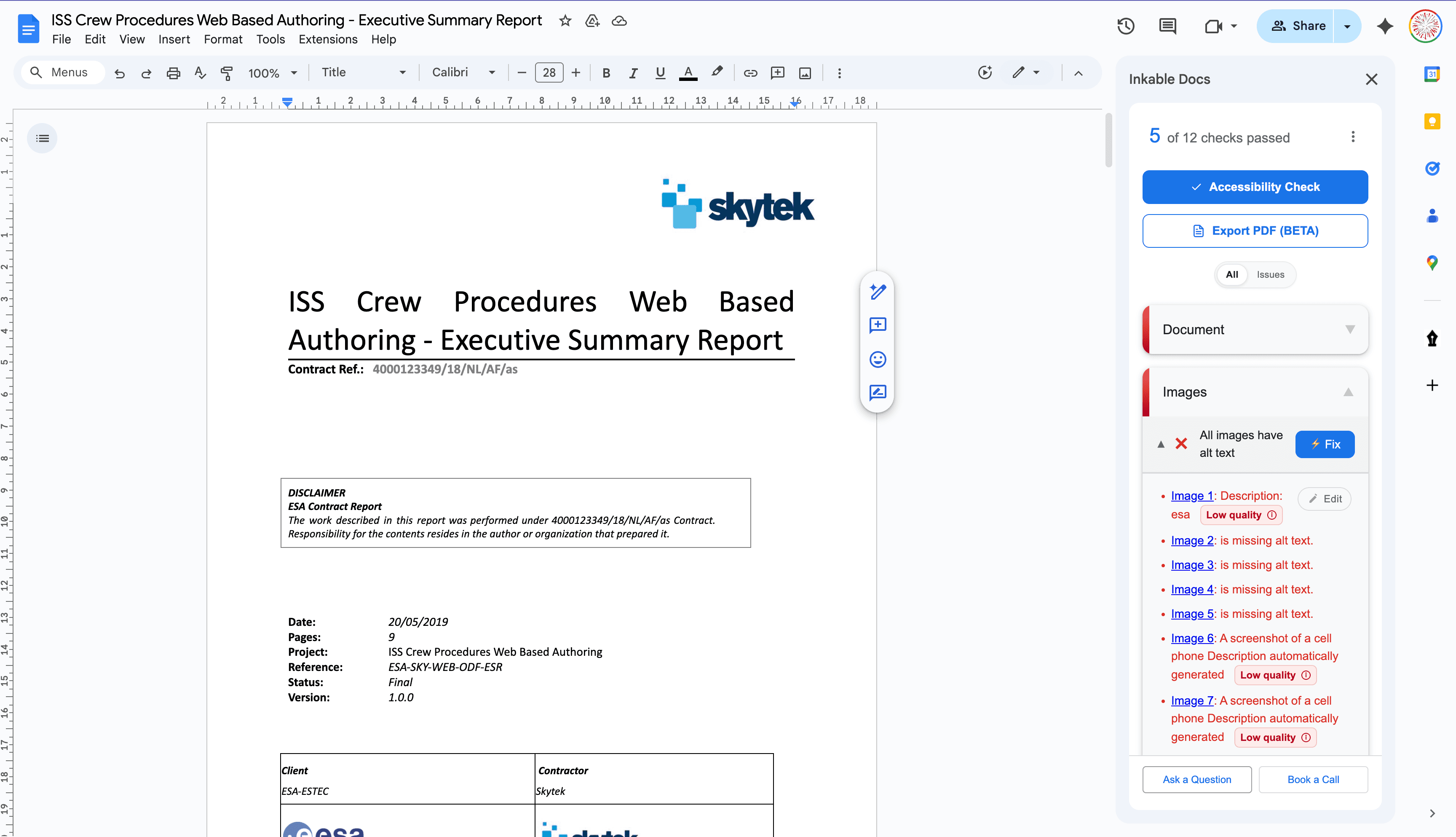
A document can look organized and still be difficult to navigate with assistive technology. Inkable brings findings into the authoring workflow so your team can address them while the Google Doc is still being edited.
Identify heading hierarchy issues so readers can navigate sections instead of relying on visual formatting.
Author review: Confirm that headings describe the content and follow a logical outline.
Find missing or low-quality alt text and use AI-assisted descriptions as a starting point for remediation.
Author review: Check descriptions against the purpose of each image, especially charts and technical diagrams.
Review table structure and header associations so relationships between cells can be understood.
Author review: Verify that headers explain the data and simplify tables that are difficult to navigate.
Review link purpose and list structure to find barriers hidden behind otherwise readable text.
Author review: Check that link labels explain their destination and lists reflect the intended sequence.
Check text contrast and document metadata, including the title and primary language.
Author review: Confirm the language and title are correct and that meaning is clear without color alone.
Use the reviewed source document in Inkable's tagged PDF export workflow, with PDF/UA checks supporting the handoff.
Author review: Review the exported file, including reading order and content meaning, before distribution.
Install Inkable Docs from the Google Workspace Marketplace. Open your document, then choose Extensions → Inkable Docs → Launch.
Use the sidebar to inspect document checks and identify the headings, images, tables, and other content that need attention.
Use supported fixes and author guidance to address findings. Review AI suggestions for accuracy, then rerun checks after editing.
Keep the Google Doc ready for future edits. When you need a PDF, use Inkable's export workflow and review the output before publishing.
Start with a syllabus, an image-heavy handout, and a report with tables. Check whether authors can understand the findings, review suggestions, and repeat the process after revisions. Include a Google Doc and an exported PDF in your review.
Automated findings support accessibility decisions. Authors and reviewers still need to confirm meaning, reading order, and the accuracy of AI-generated descriptions before publishing.
Everything you need to know about how Inkable checks, fixes, and documents accessibility across authoring tools, LMS course materials, and PDF workflows. Need more help? Reach out to support@inkabledocs.com.
Install the add-on to start with a document, or talk with us about evaluating the workflow across your school or university.